App
PauseFirst: a quick task before the app
A short moment between reaching for your phone and opening the app: PauseFirst gives you a small task before selected apps open. If you really need the app, you solve it in seconds. If you're just reaching out of habit, you notice, and often let it go. PauseFirst is an iPhone app made by one person. Right now it is available as a public beta on TestFlight, and the App Store is coming soon. Why I went for friction instead of bans is in the blog post.
What it looks like
How it works
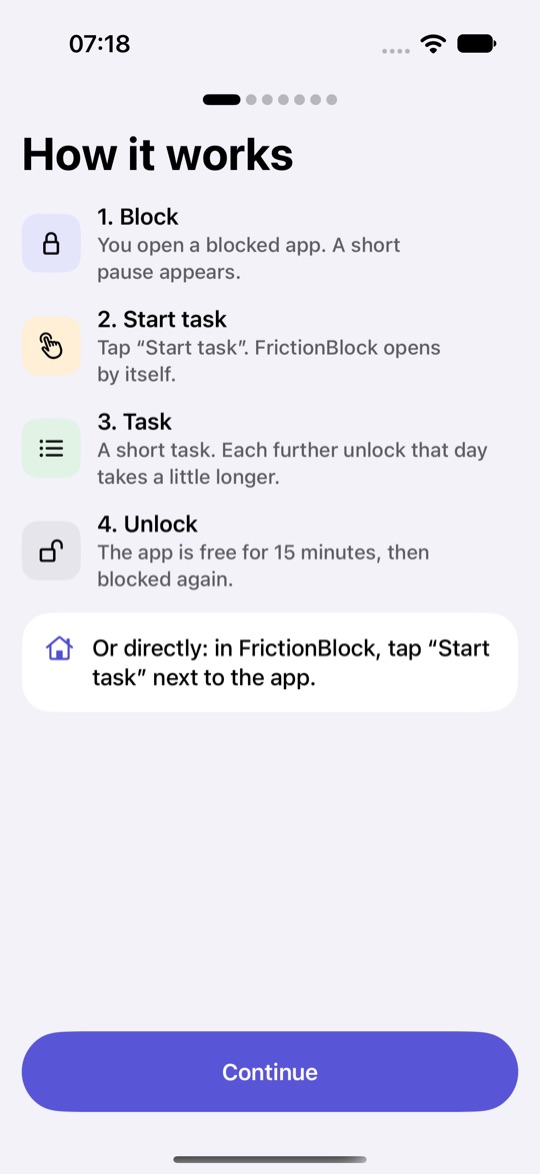
Choose the apps or categories that should get a pause. Open one of them and a block screen appears with “Start task”. PauseFirst opens with a short task. Once you've solved it, the app is free for 15 minutes, then it locks again.
Prefer to go direct? In PauseFirst, tap “Start task” next to the app. The Control Center control takes you to that list in one tap.
PauseFirst uses iOS Screen Time for this. You need an iPhone with iOS 27, but no account.
12 tasks to break the autopilot
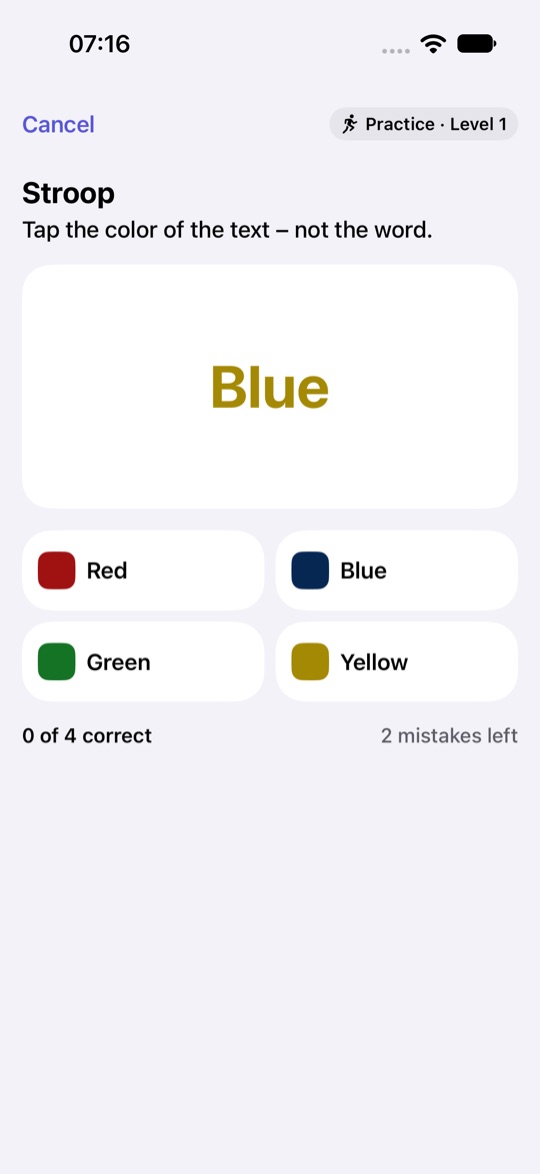
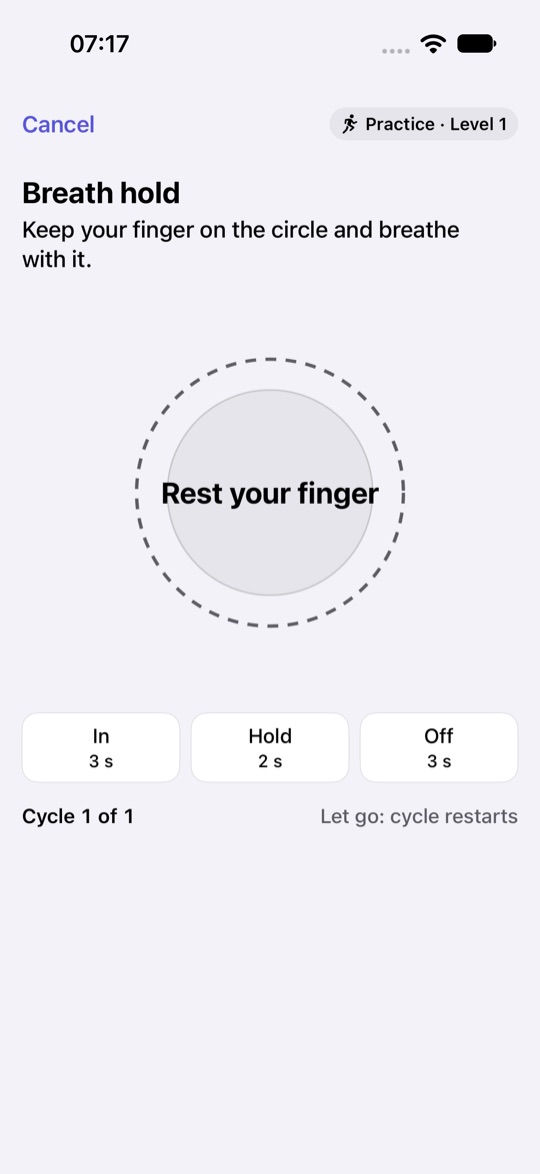
Math chain, Stroop, Digits backwards, Anagram, Letter Hunter, Typing, Tiles, Precision Tap, Slow swipe, Breath hold, Gyro Balance and Table lock. Some need your head, some a steady hand, some a long breath.
In “Practice tasks” you can try every task at any level without anything counting, so you know in advance what waits in front of a blocked app. Tasks are available in English and German.
Every further unlock costs a little more
Each further unlock on the same day makes the next task a little longer. It doesn't grow forever, though. At midnight the day starts over with the first unlock.
With Pro you set your own highest level, anywhere from level 2 to 20. Level 1 is left out on purpose, so some of the climb remains. An offer to buy never appears during a task or on the way to an unlock.
Schedule and statistics
Blocking doesn't have to run around the clock: a schedule limits it to, say, working hours or the evening. Statistics cover today and the last 7 days, with unlocks per day, by weekday and by time of day.
With Pro you can set up multiple schedules, each with its own app selection, and see your statistics history for all days, with trends and CSV export.
Emergency unlocks and honest limits
Sometimes it has to be quick. One emergency unlock a day frees an app for 5 minutes without a task, two with Pro. It doesn't count as an unlock, but it shows up in your statistics.
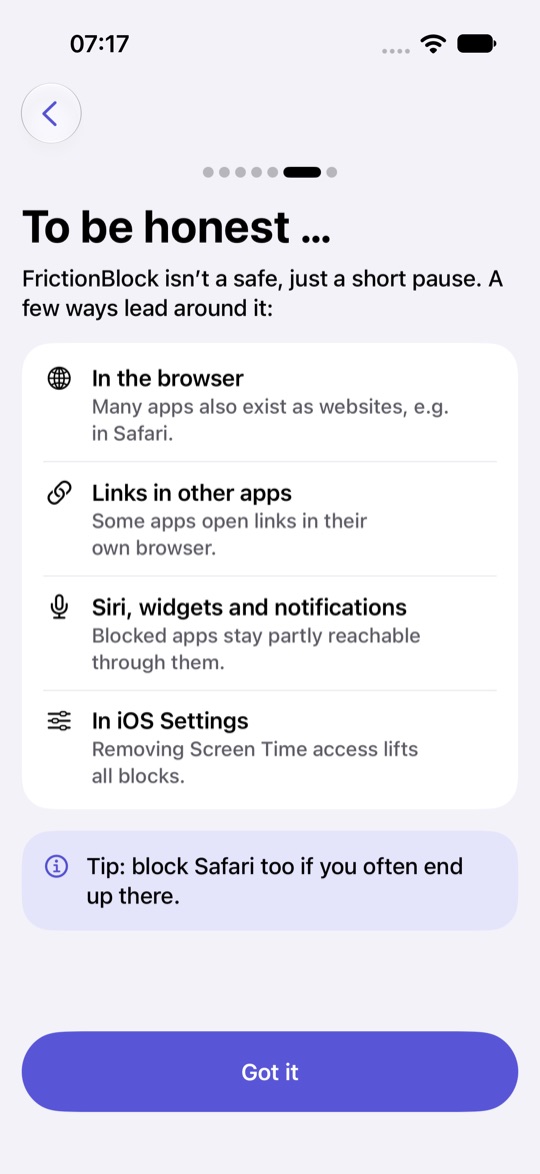
To be honest, PauseFirst isn't a safe, just a short pause. Removing PauseFirst's access in iOS Settings under Screen Time lifts all blocks. That's on purpose: you stay in control. PauseFirst tells you so during setup.
Solvable for everyone
Anything you physically can't solve, for example because of motor skills or color vision, you exclude for free under Accessibility. Accessibility is never behind a purchase.
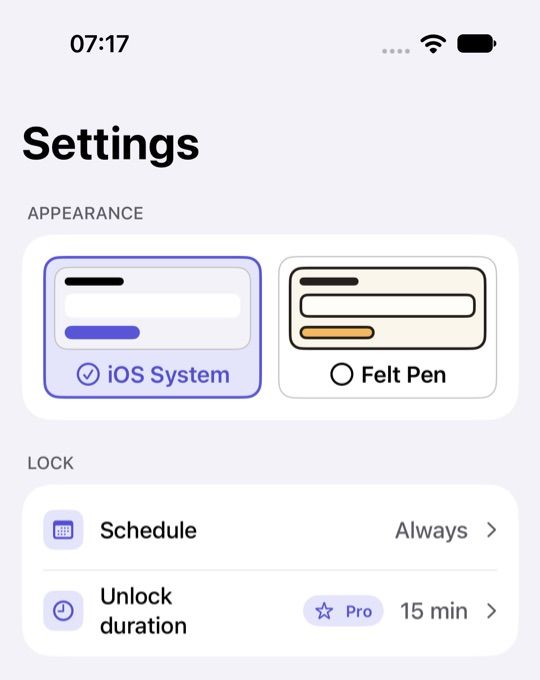
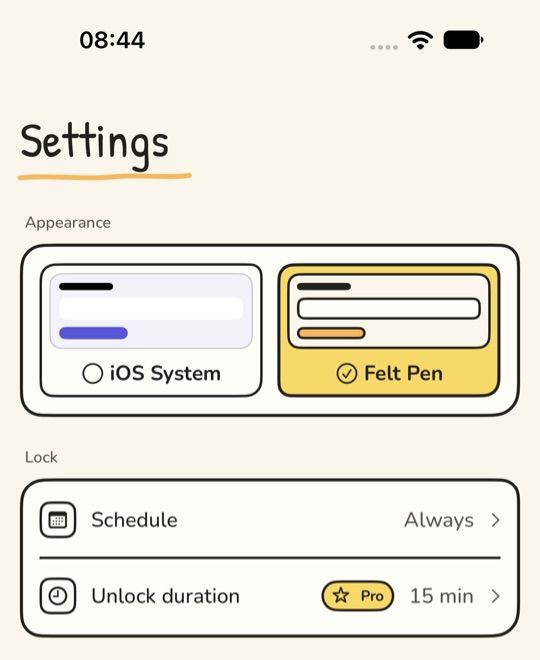
Two themes are included, both free: iOS System with the familiar iPhone look, and Felt Pen with a paper tone, black outlines and handwritten headings.
Free and Pro
Free, with no time limit: blocking apps and categories, all 12 tasks, one schedule, statistics for today and the last 7 days, one emergency unlock a day, accessibility and both themes.
Pro gives you more control over your pauses. You choose the unlock length: 5, 10, 15 or 30 minutes. You set up multiple schedules, each with its own app selection. You can turn off any task type, with at least 3 staying active. You get two emergency unlocks a day instead of one. You set your own highest level, level 2 to 20. And you see your statistics history for all days, with trends and CSV export.
Pro is a one-time purchase, no subscription, and can be shared through Family Sharing. PauseFirst is made by one person; Pro supports its further development.
Privacy
Everything stays on your iPhone: no account, no server, no ads, no tracking. Only iOS sees which apps you block. PauseFirst collects no data.
What the app stores on the device and how to delete it is covered in the privacy policy for PauseFirst.
Support and contact
Questions, bugs or requests about PauseFirst? Write to support@nerdwana.net. It helps to mention which iOS version you use and, for a bug, what you did just before it happened.
Frequently asked questions
Which permission does PauseFirst need? Access to Screen Time, which you grant during setup with “Allow Screen Time”. That is how PauseFirst blocks the apps you choose; only iOS sees which ones they are. Notifications are optional, and blocking works without them.
Which devices does PauseFirst run on? iPhone with iOS 27 and Screen Time.
Can I get around PauseFirst? Yes. Removing PauseFirst's access in iOS Settings under Screen Time, or deleting the app, lifts all blocks. PauseFirst is meant to slow you down, not to lock you out.
What does Family Sharing mean for PauseFirst? Two things. Pro can be shared with your family group through Family Sharing. Separately, PauseFirst is meant for self-control on your own iPhone: on devices in Family Sharing, a parent manages Screen Time.
How do I get Pro back on another iPhone? In the app's Settings, under “Pro”, tap “Restore Purchases”.
How do I delete my data? In the app's Settings, “Delete all data” removes your selection, the settings and the statistics and lifts all blocks. A random installation ID stays in the iPhone's keychain and may even outlast deleting the app; it never leaves the device.
What if I urgently need an app? Tap “Emergency” in the task. The app is then free for 5 minutes without a task, once a day, twice with Pro. The emergency unlock doesn't count as an unlock, but it shows up in your statistics.
Related reading
PauseFirst is available as a public beta on TestFlight right now. The App Store is coming soon.
Questions or bugs? Write to support@nerdwana.net.